To install the plugin first go your account page (you must be logged in to download a copy). From here select the “Downloads” tab and the button to download the latest version of the plugin.
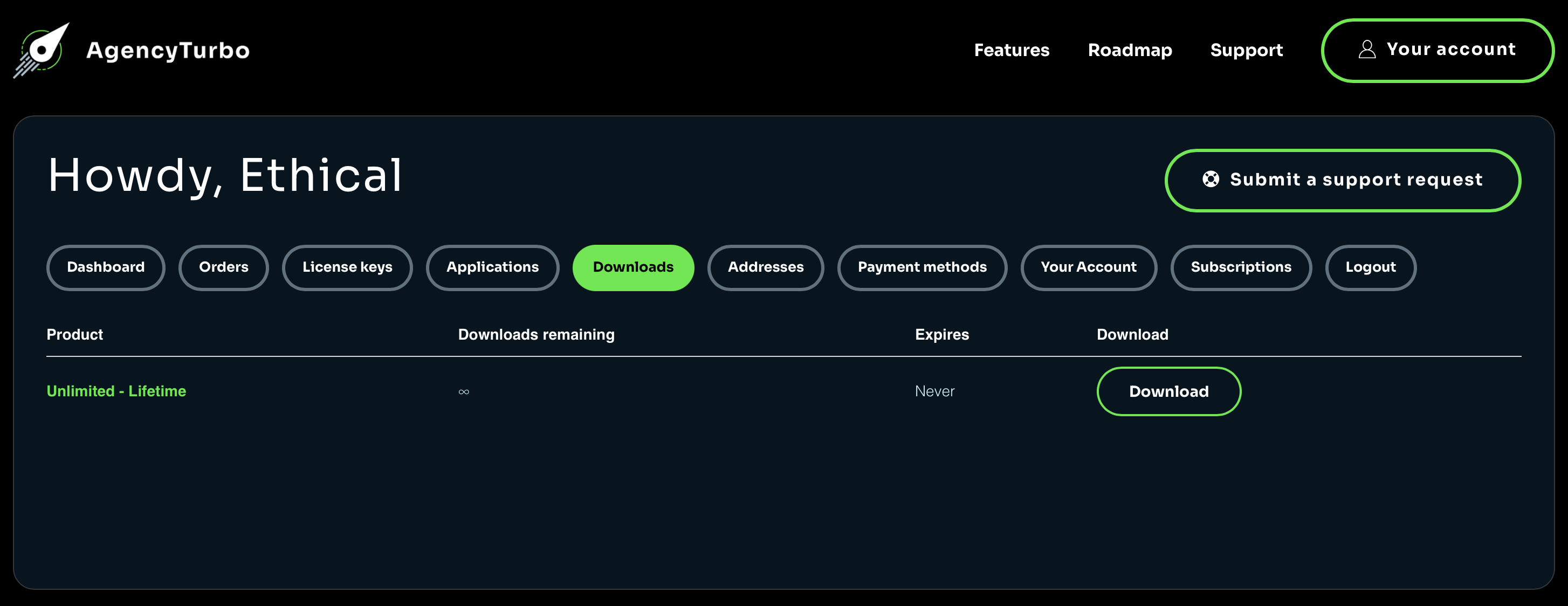
This will download a .zip file to your computer.
Next head over to the your website and open up the WordPress Dashboard. Go to the “Plugins” tab.
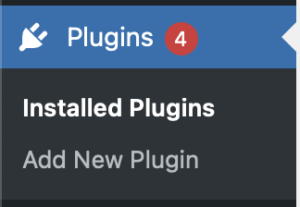
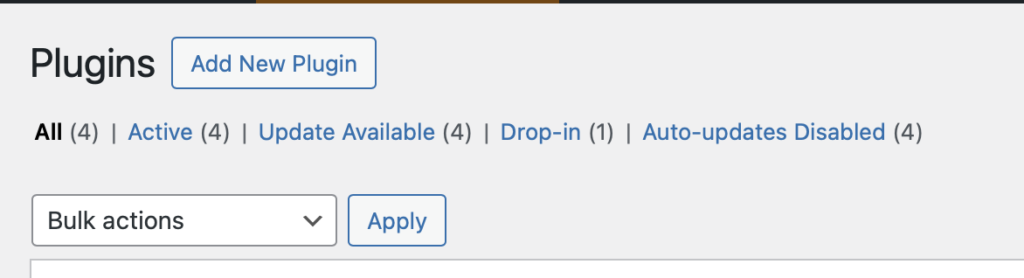
At the top of the plugin tab select the button “Add New Plugin”.
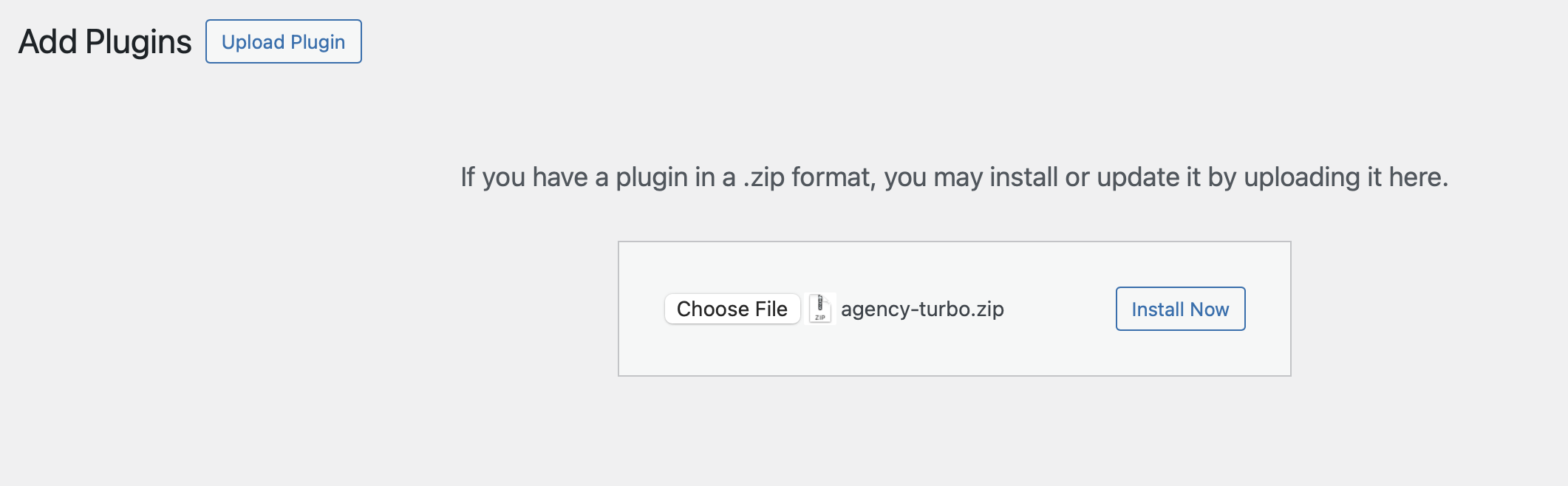
On the subsequent screen, you will see an “Upload Plugin” button. This will reveal a section that allows you to select a file. Choose a file and select the .zip file you downloaded in the previous step. After this select “Install Now”.
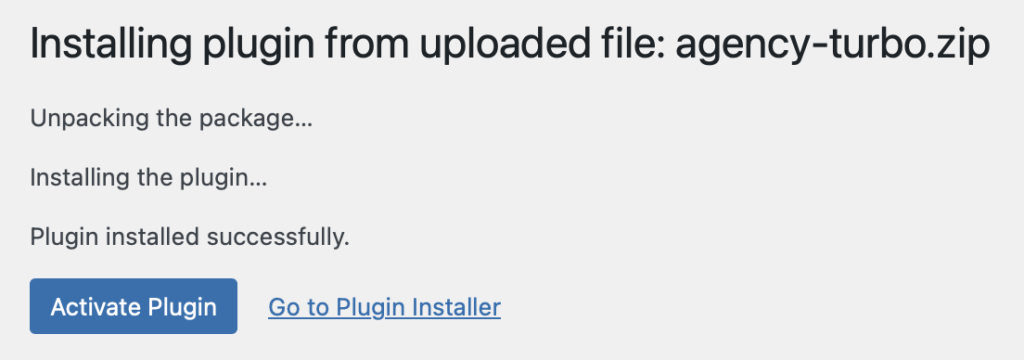
There will be a brief pause while the plugin is uploaded and installed. You should then see an option to “Activate Plugin”. Select this option.
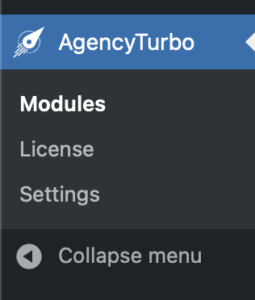
You will now see Agency Turbo as an option in the sidebar of your dashboard. Agency Turbo adds itself to the bottom of your sidebar, to stay out of the way of core WordPress features.
You have now installed AgencyTurbo! Congratulations. You might want to read about Activating Agency Turbo next.